P
Puneet
Guest
- Thread Author
- #1
After the launch of new improved UI, we have been working extensively with the Freemius team to build integration for WPfomify. Vova Feldman, Co-founder & CEO of Freemius, and the Freemius team were kind enough to provide all the support and connect us with Freemius users to test out the beta release.
Freemius is a popular SAAS for selling WordPress themes and plugins. It’s easy to set up, use and handles all the technicalities like License keys, updates etc. Freemius also provides great insights for the free and pro versions of your Products.
With the new integration, Freemius users can now display recent sales notifications and user activity from their Freemius account on their WordPress website.
As always, our focus has been on building a solution that’s easy to use. In order to connect with your Freemius account, you will need the following:
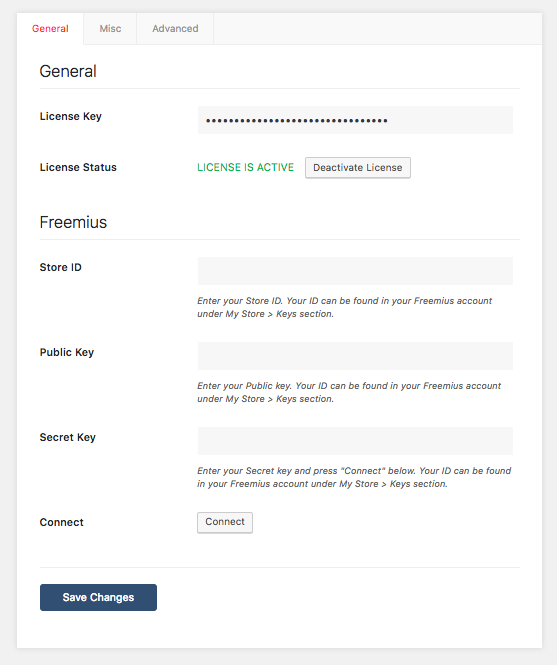
After adding all the details, you simply need to click the Connect button and once the connection is established you can go to WPfomify > Add New page and create a new Social Proof Notification for your WordPress site.
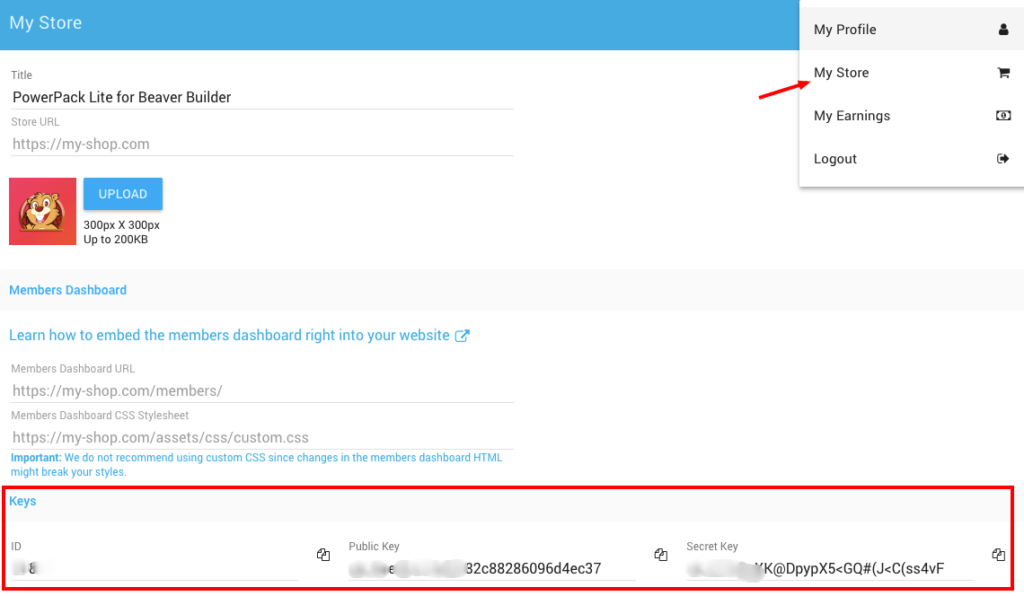
Freemius store details like Store ID, Public and Secret Key can be easily found in your account. Login to your Freemius account and click the Profile icon in the top right corner and then click on My Store option.
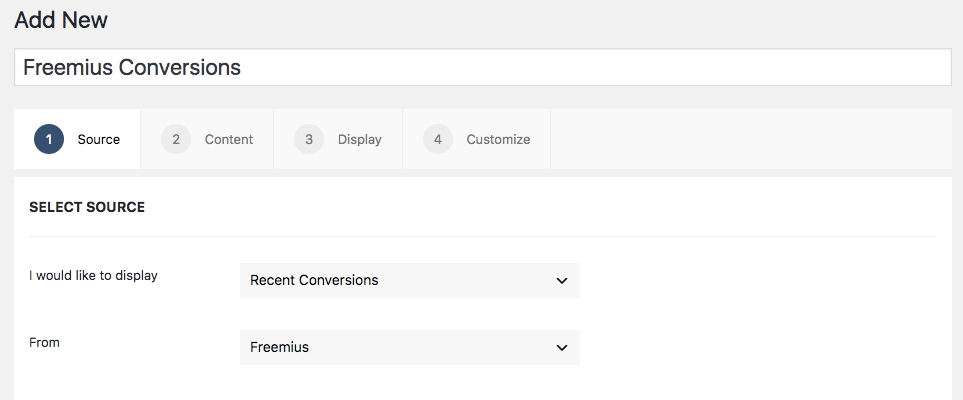
Once you have connected the Freemius Store with WPfomify, you can create a new notification from WP admin > WPfomify > Add New page and select the source as Freemius.
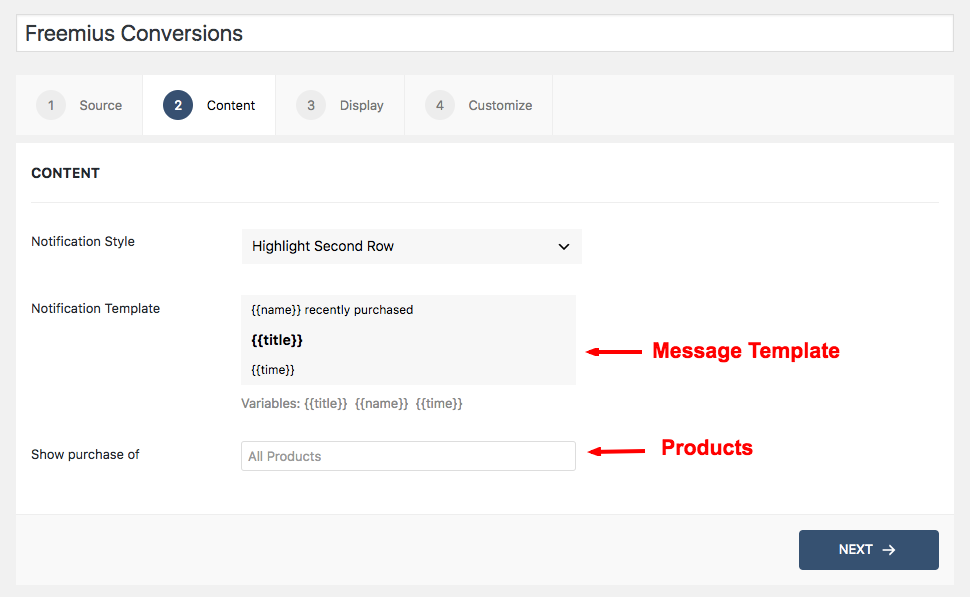
After this, move to the Content tab and you can select to display the sales notifications for all products or selected products from your store. You can also easily customize the notification message.
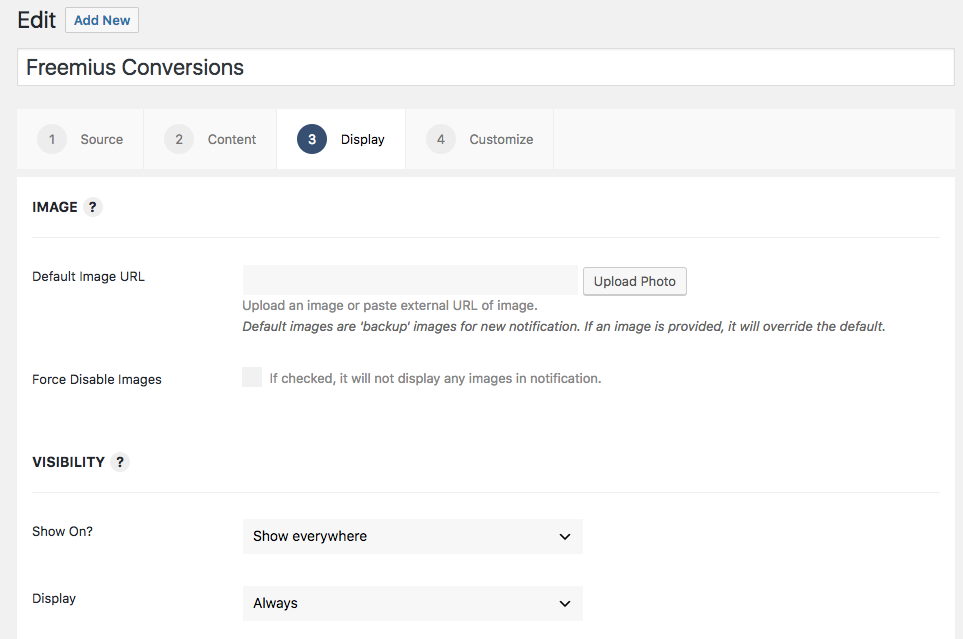
Under the Display tab, you can set a default fallback image and rules for displaying the notifications on particular pages of the site. To target particular URLs on the site, you can use relative URL format as shown below:
Relative URL for targetting: your-page-slug/
Displaying with wildcard: your-page-slug/*
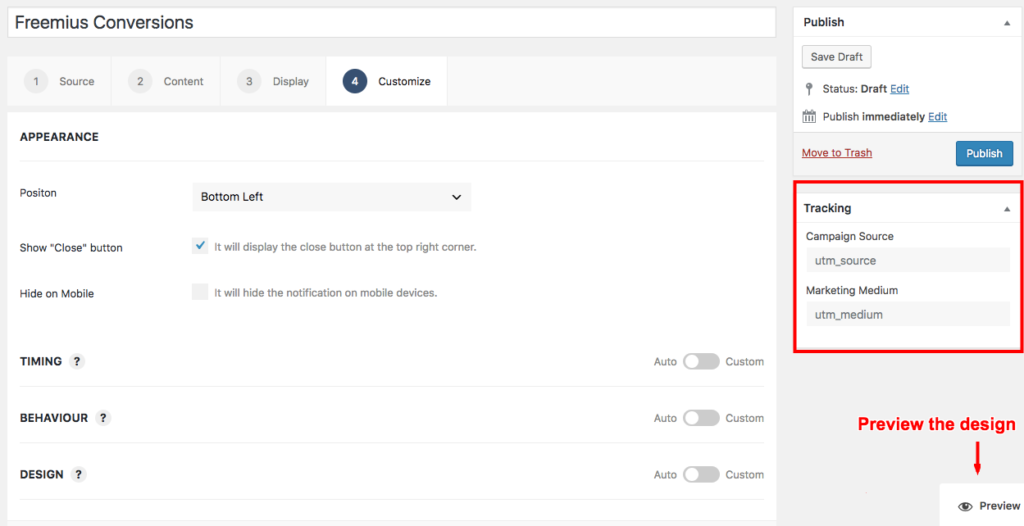
Next comes the Customize tab, here most of the settings are auto-configured for best performance. You can click the toggle icons to change the settings as per your requirements and finally, click the Save button to publish WPfomify Notification.
You can also add UTM Parameters to the notification which will be added to the Product URLs so that you can easily track clicks and conversions with Google Analytics.
The Preview button gives you a live preview of the notification design on the same page.
WPfomify is the only Social Proof Plugin for WordPress that you will ever need! Click here to get it now.
Got any questions or suggestions? Please feel free to drop in your comments.
The post Introducing Freemius Integration for WPfomify appeared first on WPfomify.
Social Proof Marketing with Freemius & WPfomify
Freemius is a popular SAAS for selling WordPress themes and plugins. It’s easy to set up, use and handles all the technicalities like License keys, updates etc. Freemius also provides great insights for the free and pro versions of your Products.
With the new integration, Freemius users can now display recent sales notifications and user activity from their Freemius account on their WordPress website.
Setting up Freemius with WPfomify
As always, our focus has been on building a solution that’s easy to use. In order to connect with your Freemius account, you will need the following:
- Store ID
- Public Key
- Secret Key
After adding all the details, you simply need to click the Connect button and once the connection is established you can go to WPfomify > Add New page and create a new Social Proof Notification for your WordPress site.
How to get Freemius Store details?
Freemius store details like Store ID, Public and Secret Key can be easily found in your account. Login to your Freemius account and click the Profile icon in the top right corner and then click on My Store option.
Displaying Freemius Conversions
Once you have connected the Freemius Store with WPfomify, you can create a new notification from WP admin > WPfomify > Add New page and select the source as Freemius.
After this, move to the Content tab and you can select to display the sales notifications for all products or selected products from your store. You can also easily customize the notification message.
Under the Display tab, you can set a default fallback image and rules for displaying the notifications on particular pages of the site. To target particular URLs on the site, you can use relative URL format as shown below:
Relative URL for targetting: your-page-slug/
Displaying with wildcard: your-page-slug/*
Next comes the Customize tab, here most of the settings are auto-configured for best performance. You can click the toggle icons to change the settings as per your requirements and finally, click the Save button to publish WPfomify Notification.
You can also add UTM Parameters to the notification which will be added to the Product URLs so that you can easily track clicks and conversions with Google Analytics.
The Preview button gives you a live preview of the notification design on the same page.
Get WPfomify Now!
WPfomify is the only Social Proof Plugin for WordPress that you will ever need! Click here to get it now.
Got any questions or suggestions? Please feel free to drop in your comments.
The post Introducing Freemius Integration for WPfomify appeared first on WPfomify.
Last edited: